Check your Meta Business verification status
Before connecting WhatsApp to Deskbolt, your business must be verified by Meta — both at the business level and the WhatsApp Business account level.
This page shows you how to check both statuses in 2 minutes.
Prerequisites
- Admin access to your Meta Business Manager (business.facebook.com)
- The Business Manager that owns the page/WhatsApp number you want to connect to Deskbolt
If your account has several Business Managers, make sure you check the one that owns the WhatsApp Business Account you want to use with Deskbolt. Switching BMs is done via the dropdown at the top-left of business.facebook.com.
Quick check — Business verification status
The fastest way to see if your business is verified:
- Go to business.facebook.com
- Click on the Settings icon (top-left, gear icon) → Business portfolio info
- Scroll down to Business verification status
If you see a green ✓ Verified, your business is verified. ✅
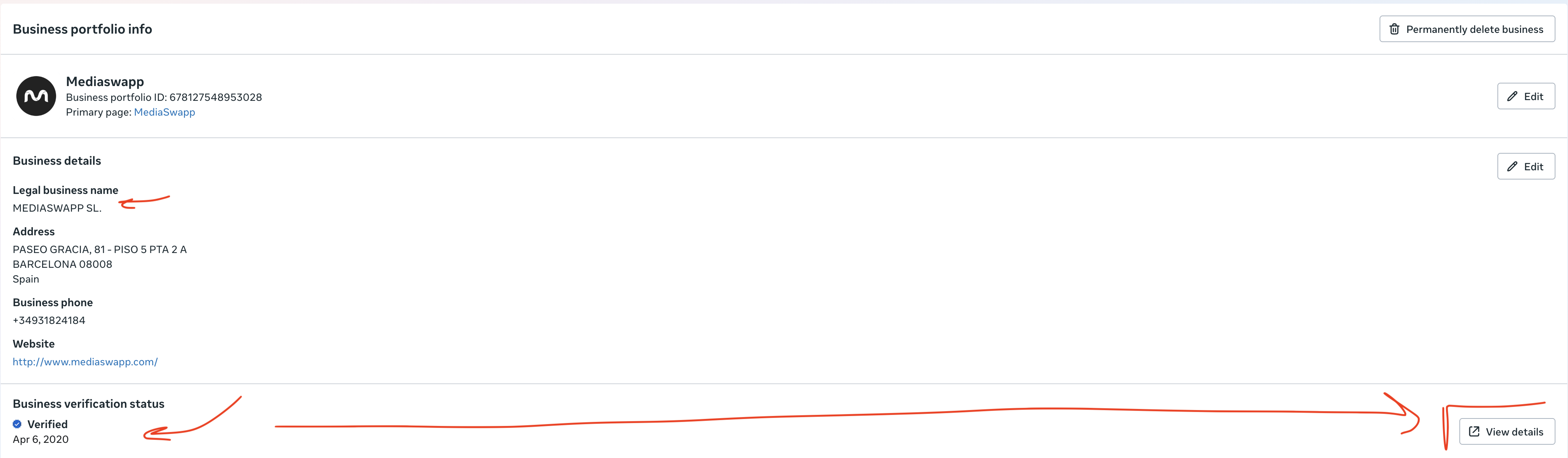
If you see something else (Not verified, Failed, Pending), go to Page 2 — How to verify your business.
Detailed check — Security Center
For more detail (and to check WhatsApp Business Account verification specifically), use the Security Center:
Step 1 — Open Security Center
In Business Manager:
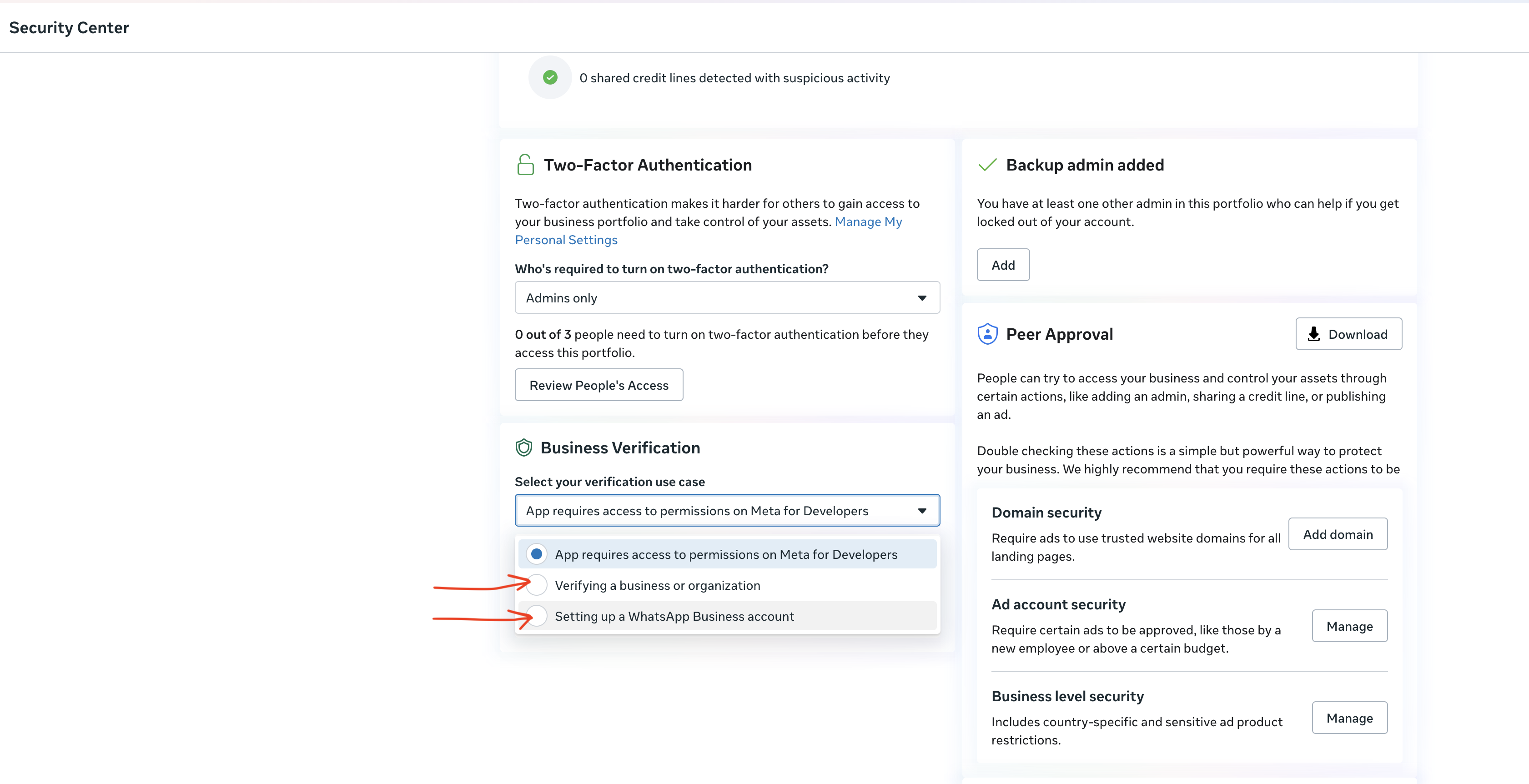
- Settings → Security Center (left sidebar)
- Scroll to the Business Verification section
- Click the "Select your verification use case" dropdown — you'll see 3 options:
Step 2 — Check WhatsApp Business Account verification
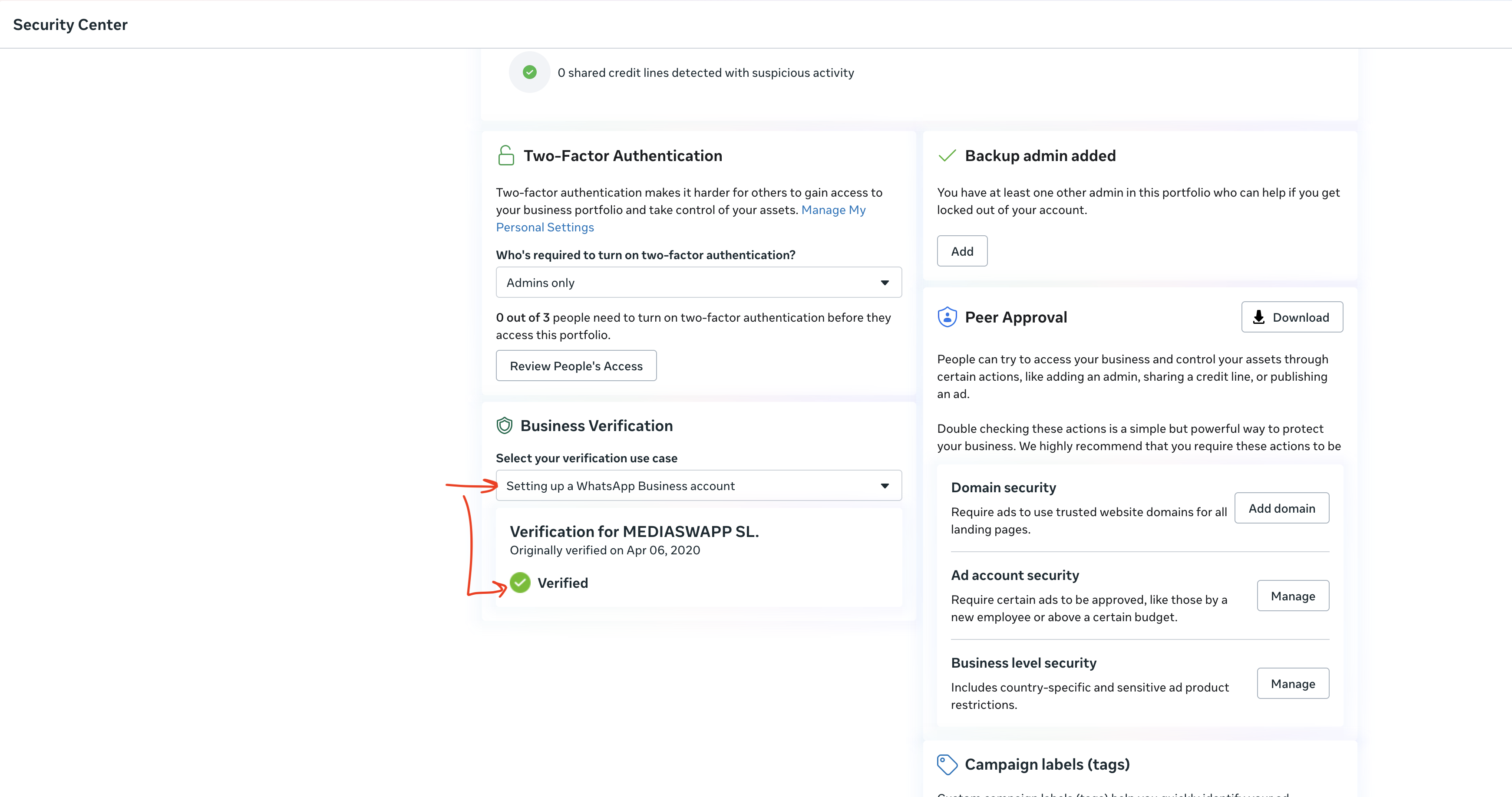
Select "Setting up a WhatsApp Business account" from the dropdown.
If your WhatsApp account is verified, you'll see:
Verification for [Your Business Name] ✅ Verified
Step 3 — Check business / organization verification
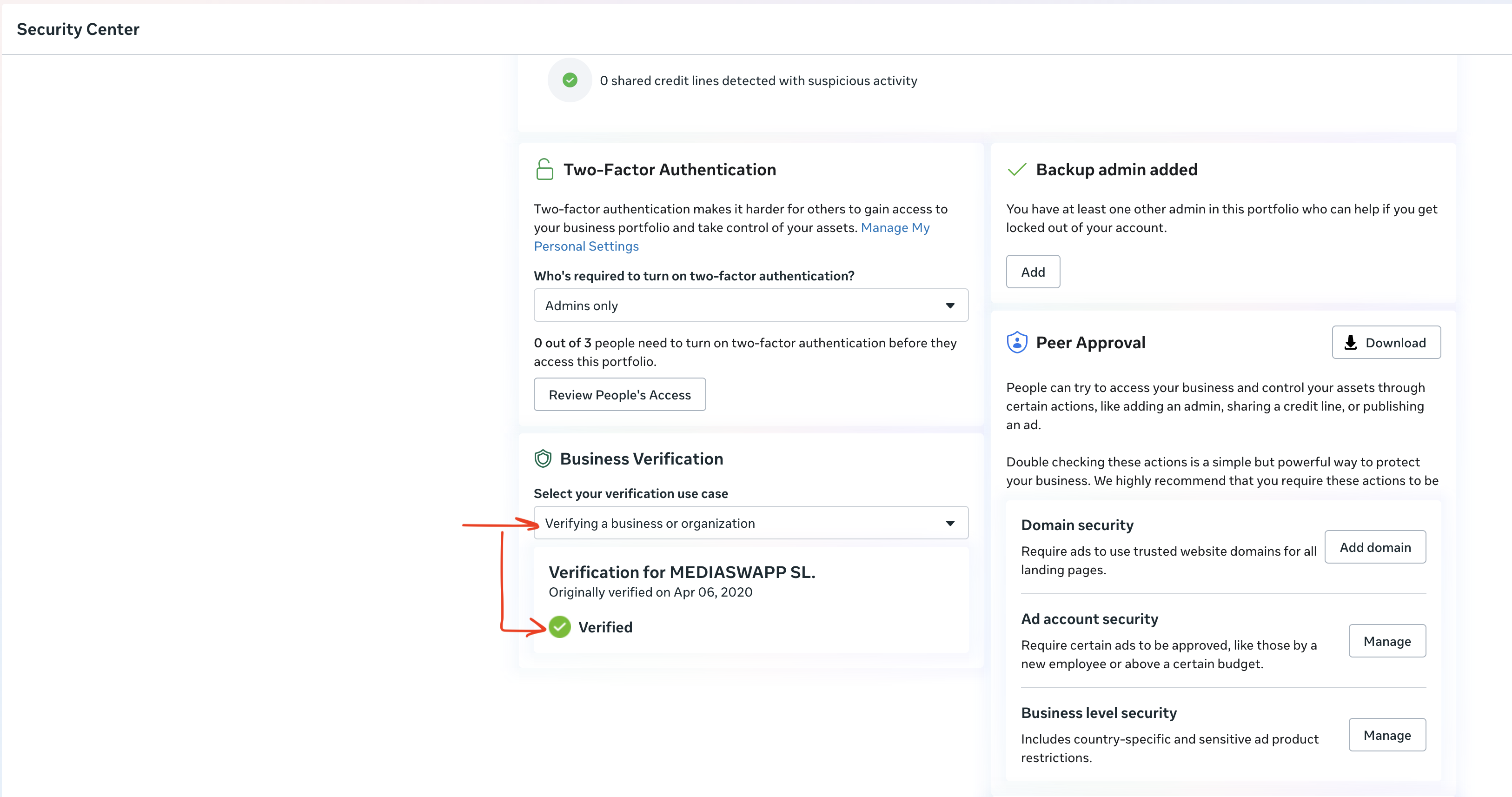
Switch the dropdown to "Verifying a business or organization".
If your business is verified at the org level:
Verification for [Your Business Name] ✅ Verified
What does "Verified" actually mean?
You need both statuses to be ✅ Verified before Deskbolt can connect WhatsApp:
| Verification | Required for | How to check |
|---|---|---|
| Business / organization | All Meta business products (ads, WhatsApp, etc.) | Step 3 above |
| WhatsApp Business account | Sending messages via WhatsApp API (which Deskbolt uses) | Step 2 above |
Both must show ✅ Verified with the green checkmark. If just one is missing, WhatsApp messaging won't work.
What if it's not verified?
No worries — verification is a one-time process that takes a few hours to a few business days. See How to verify your business on Meta for the step-by-step guide.
Once both statuses are ✅ Verified, you can move on to Connect WhatsApp to Deskbolt.
Need help?
- support@deskbolt.com — we'll review your Business Manager with you
- Meta's official Business Verification doc