Connect WhatsApp to Deskbolt
Once your Meta Business is verified, you can plug WhatsApp into Deskbolt directly from your dashboard. The whole flow is guided — Deskbolt handles the complexity (360dialog as Business Solution Provider, Meta Embedded Signup, number provisioning, display name approval).
This page walks you through every screen, in order.
Prerequisites
Before you start, make sure:
- ✅ Your Meta Business is verified (check status)
- ✅ Your WhatsApp Business Account verification is active (same page)
- ✅ You have admin access to your Meta Business Manager
- ✅ You have a dedicated phone number for WhatsApp — it cannot be active on the regular WhatsApp consumer app
- ✅ Your Deskbolt account is set up (we provision it during onboarding)
The phone number you connect to Deskbolt cannot be in use on the regular WhatsApp app. Either pick a new dedicated number, or delete the existing WhatsApp account on the consumer app first (Settings → Account → Delete) and wait ~10 minutes before retrying.
Connection workflow (overview)
1. Open Deskbolt → Settings → WhatsApp → "Connect WhatsApp Business"
   ↓
2. Create a 360dialog account (our WhatsApp BSP partner)
   ↓
3. Add your phone number
   ↓
4. Answer 3 status questions (No / No / No)
   ↓
5. Start the Meta Embedded Signup
   ↓
6. Authorize 360dialog on Facebook
   ↓
7. Select your Business Portfolio + WhatsApp Business Account
   ↓
8. (if creating a new WABA) Enter business info
   ↓
9. Add phone number → SMS verification code
   ↓
10. Wait ~24h for Meta to approve the display name
    ↓
Done — your AI chatbot is live on WhatsApp 🎉
The active part takes about 10 minutes. Then Meta needs ~24h to approve the display name. Plan accordingly.
Step 1 — Open WhatsApp settings in your Deskbolt dashboard
- Log in to deskbolt.com
- In the left sidebar: Settings → WhatsApp
- Click the green Connect WhatsApp Business button
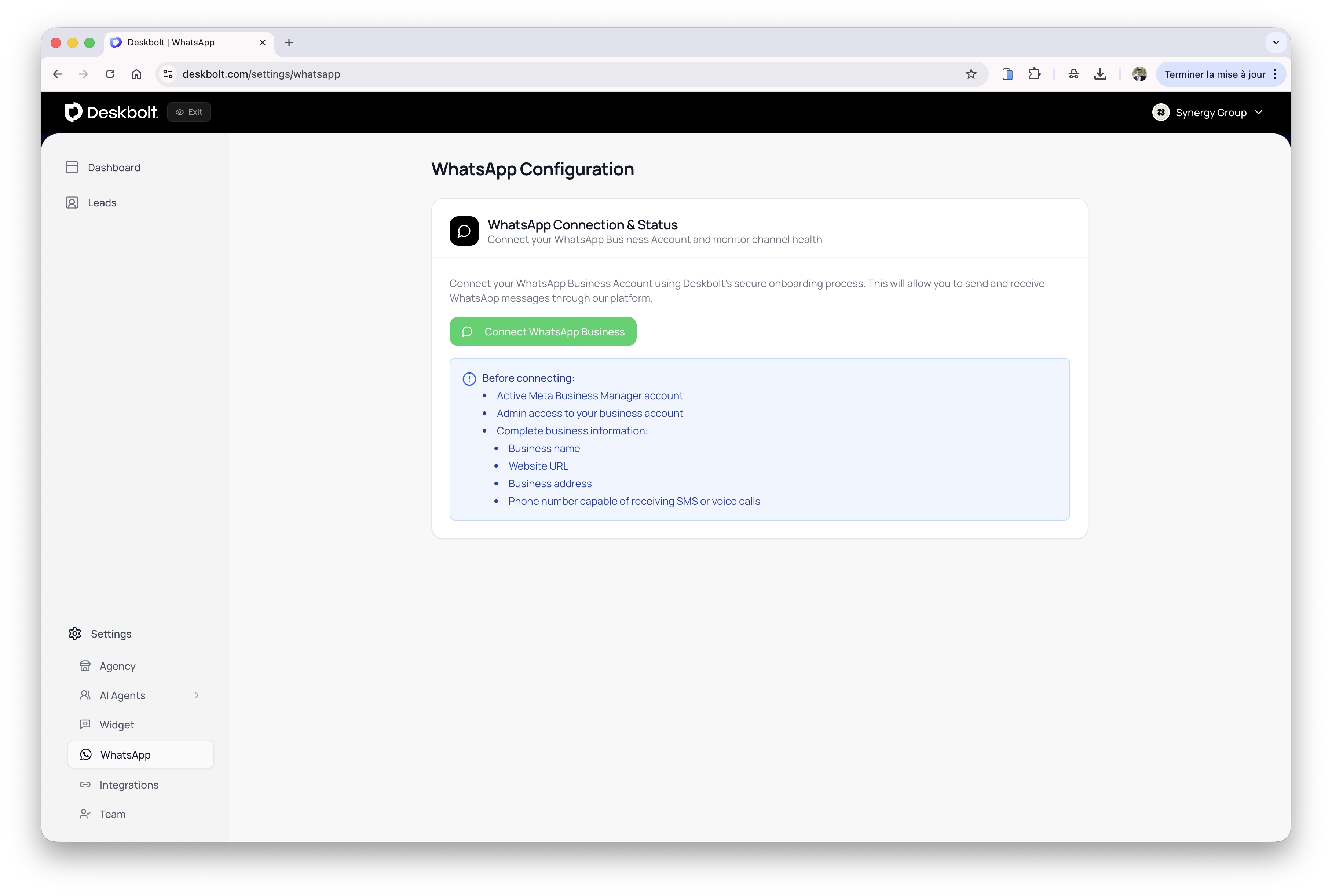
A new browser tab will open to start the connection flow.
Step 2 — Create your 360dialog account
Deskbolt uses 360dialog as official WhatsApp Business Solution Provider (BSP). It's the secure middleman between Meta and Deskbolt — it provisions and manages your WhatsApp number.
In the new tab:
- Enter an email address (use a business email — this account is yours)
- Choose a password
- Click Continue
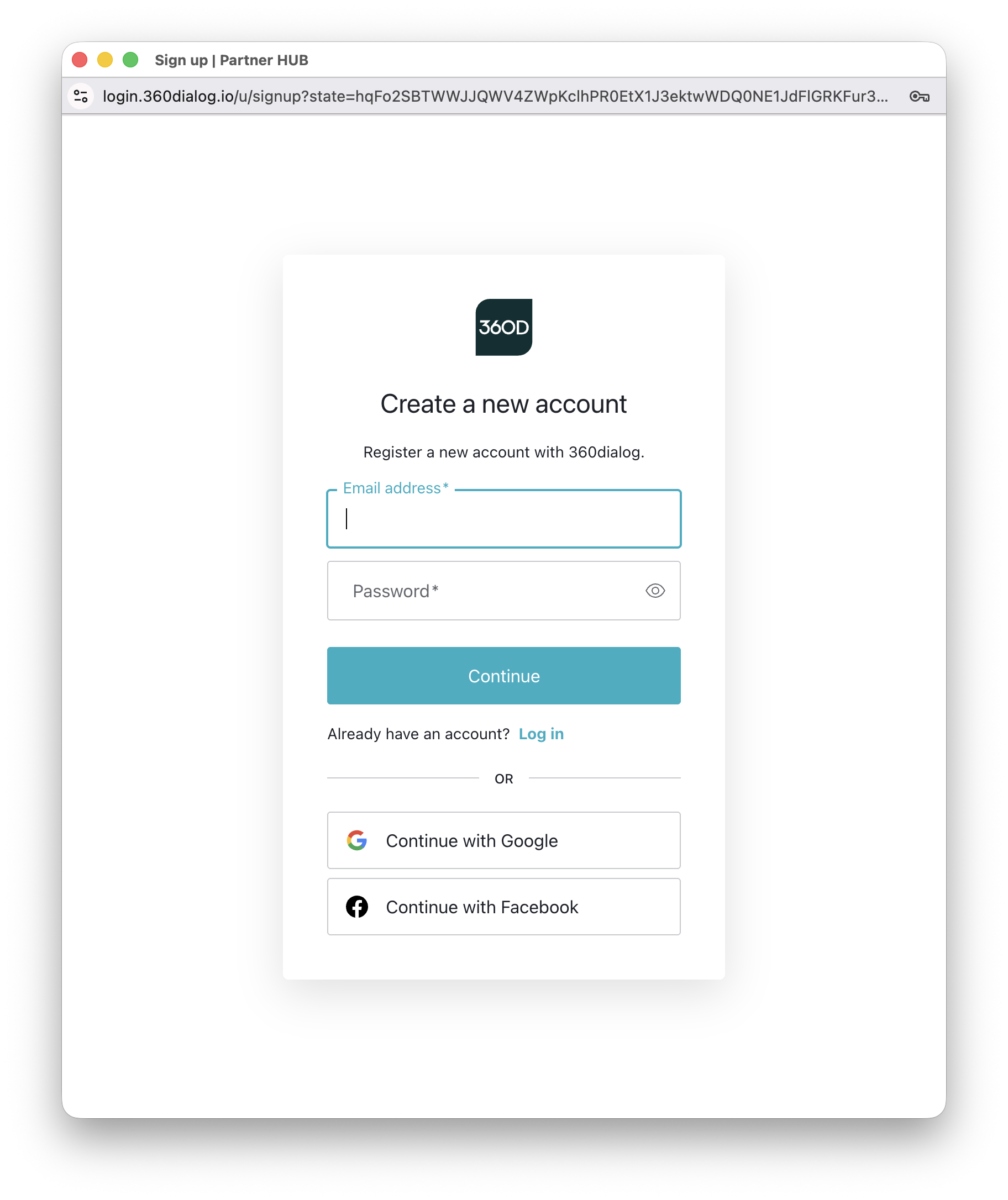
360dialog will send important notifications to this address (number status, billing if applicable, security alerts). Use an email that's actually monitored — not a temporary one.
Step 3 — Add your phone number
After signup, you'll land on the 360dialog dashboard. Click Add a number to start adding your WhatsApp number.
You'll see the About your number screen with one initial dropdown:
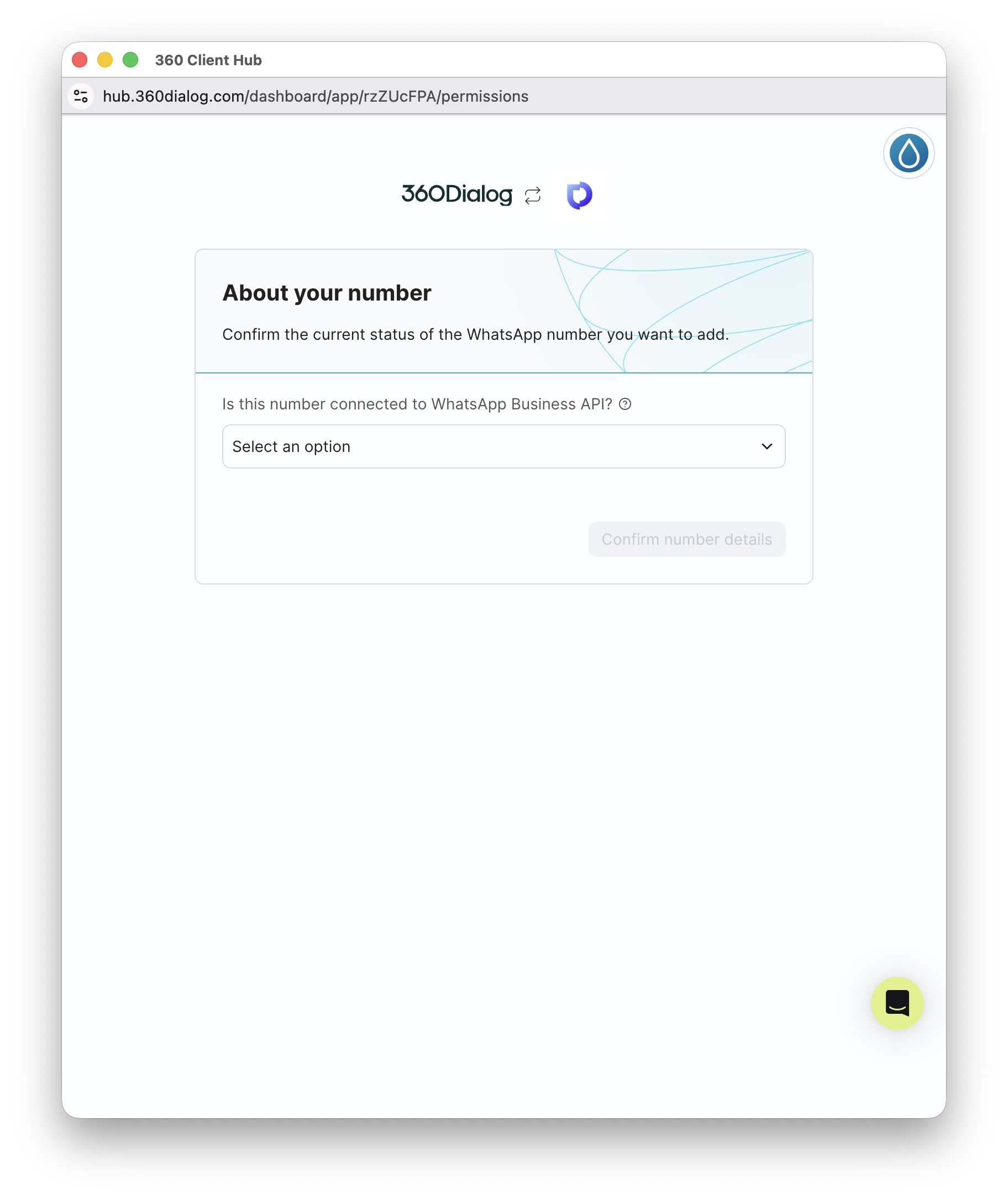
Step 4 — Answer the 3 status questions
As you answer each question, the next one appears. All three answers must be "No" for Deskbolt's setup to work:
| Question | Answer |
|---|---|
| Is this number connected to WhatsApp Business API? | No, this number is not connected to WhatsApp Business API |
| Is this number connected to WhatsApp Business App? | No, this number is not connected to WhatsApp Business App |
| Is the number connected to a personal WhatsApp account? | No, this number is not connected to a personal WhatsApp account |
Once all 3 are answered, click Confirm number details (bottom right):
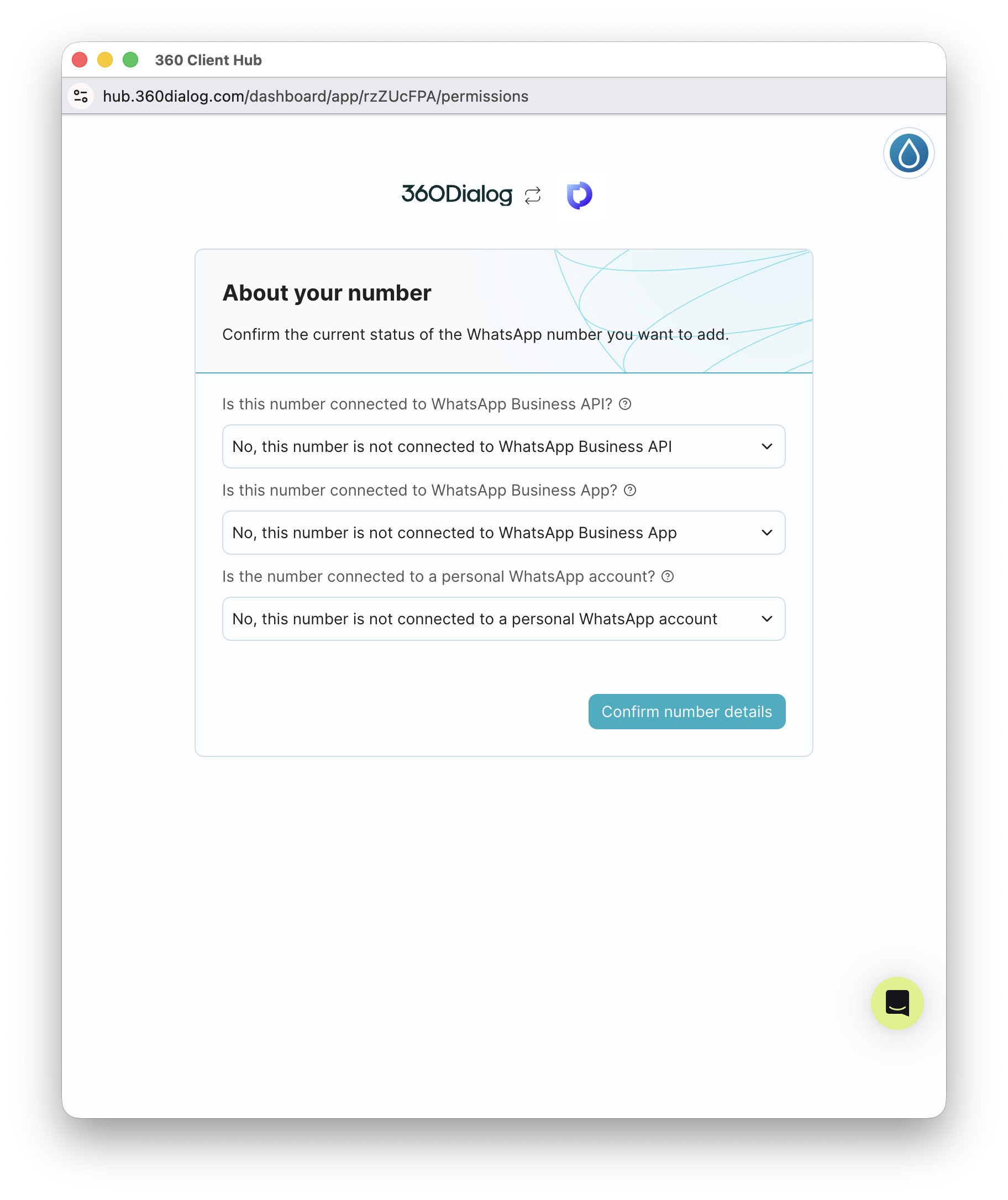
If your number is already on the consumer WhatsApp app, the personal app, or another BSP's WhatsApp Business API: you need to remove it from the previous setup first. Contact us — we'll help you handle the migration safely.
Step 5 — Start the Meta Embedded Signup
360dialog now shows you a recap of what's about to happen on Meta's side — 3 sub-steps inside the Embedded Signup:
- Access Meta Business Manager — Meta confirms which BM owns the number
- Select a WhatsApp Business Account — choose existing or create new
- Verify your WhatsApp number — the SMS/voice code
Click Start Embedded Signup (blue button, bottom right):
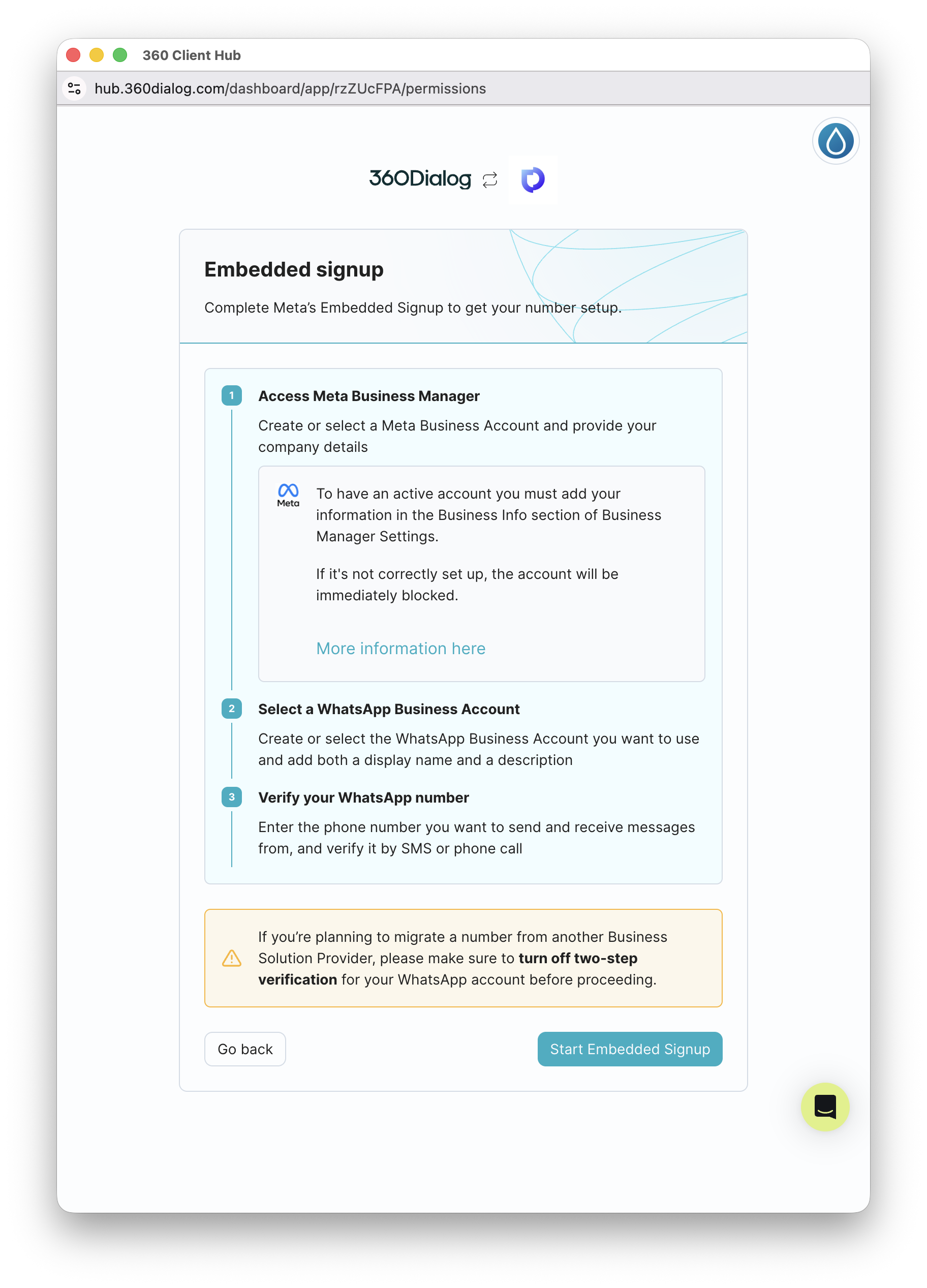
If you've previously used another WhatsApp BSP and two-step verification is enabled on the WhatsApp account you're migrating, disable it BEFORE proceeding (see the warning at the bottom of the screen). You can re-enable it after the migration.
Step 6 — Authorize 360dialog on Facebook
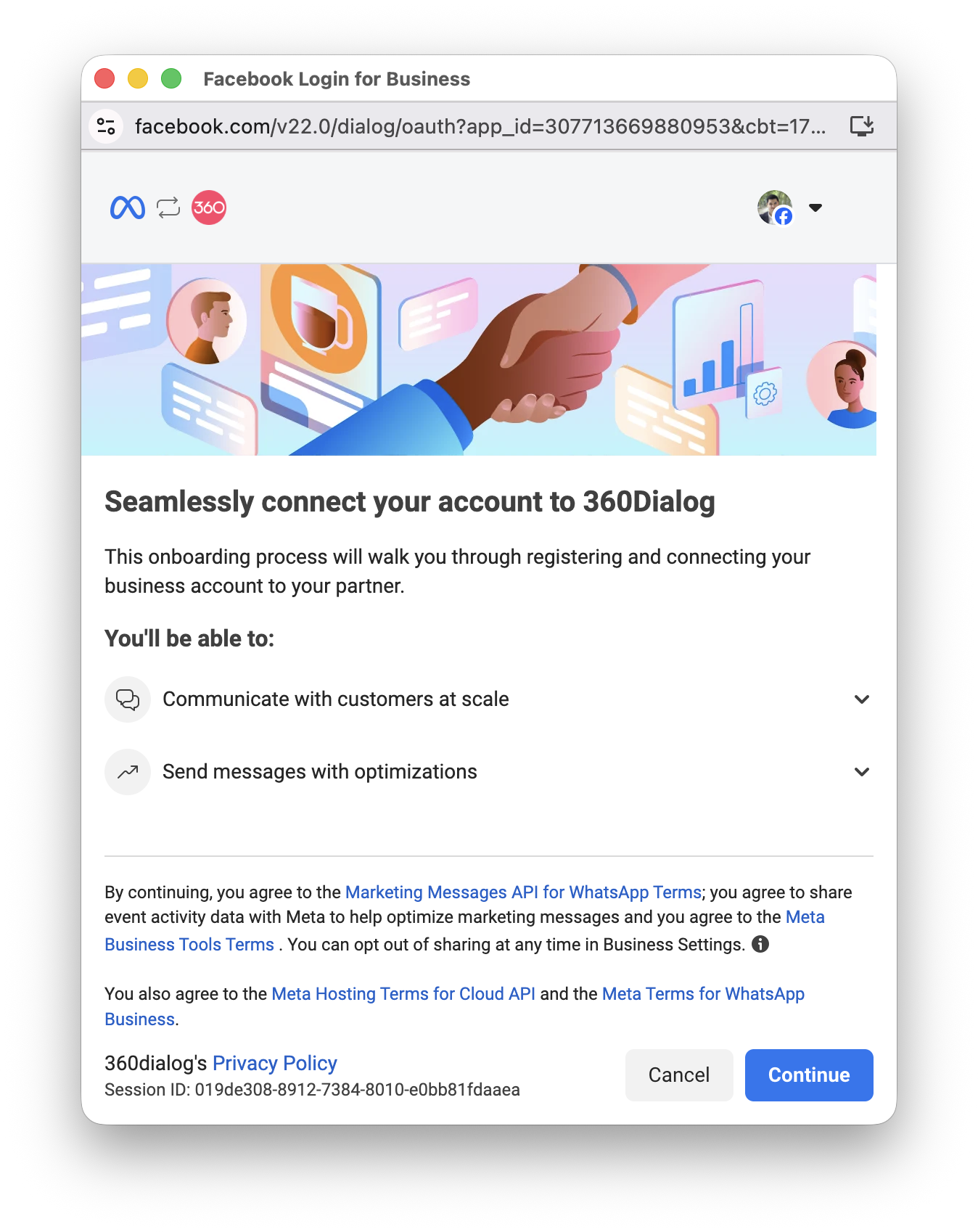
A new Facebook Login for Business window opens. You'll see:
Seamlessly connect your account to 360Dialog
This onboarding process will walk you through registering and connecting your business account to your trusted partner.
Click Continue at the bottom right:
Step 7 — Select your Business Portfolio + WhatsApp Business Account
Meta now asks you which assets to share with 360dialog. Two dropdowns to fill:
Business portfolio
Select the Business Manager that owns your WhatsApp number (often called your business name).
WhatsApp Business account
Two options:
- If you already have a WhatsApp Business Account in this portfolio that you want to use: select it from the list
- If you want a new one dedicated to Deskbolt (recommended for a clean setup): select Create a WhatsApp Business account
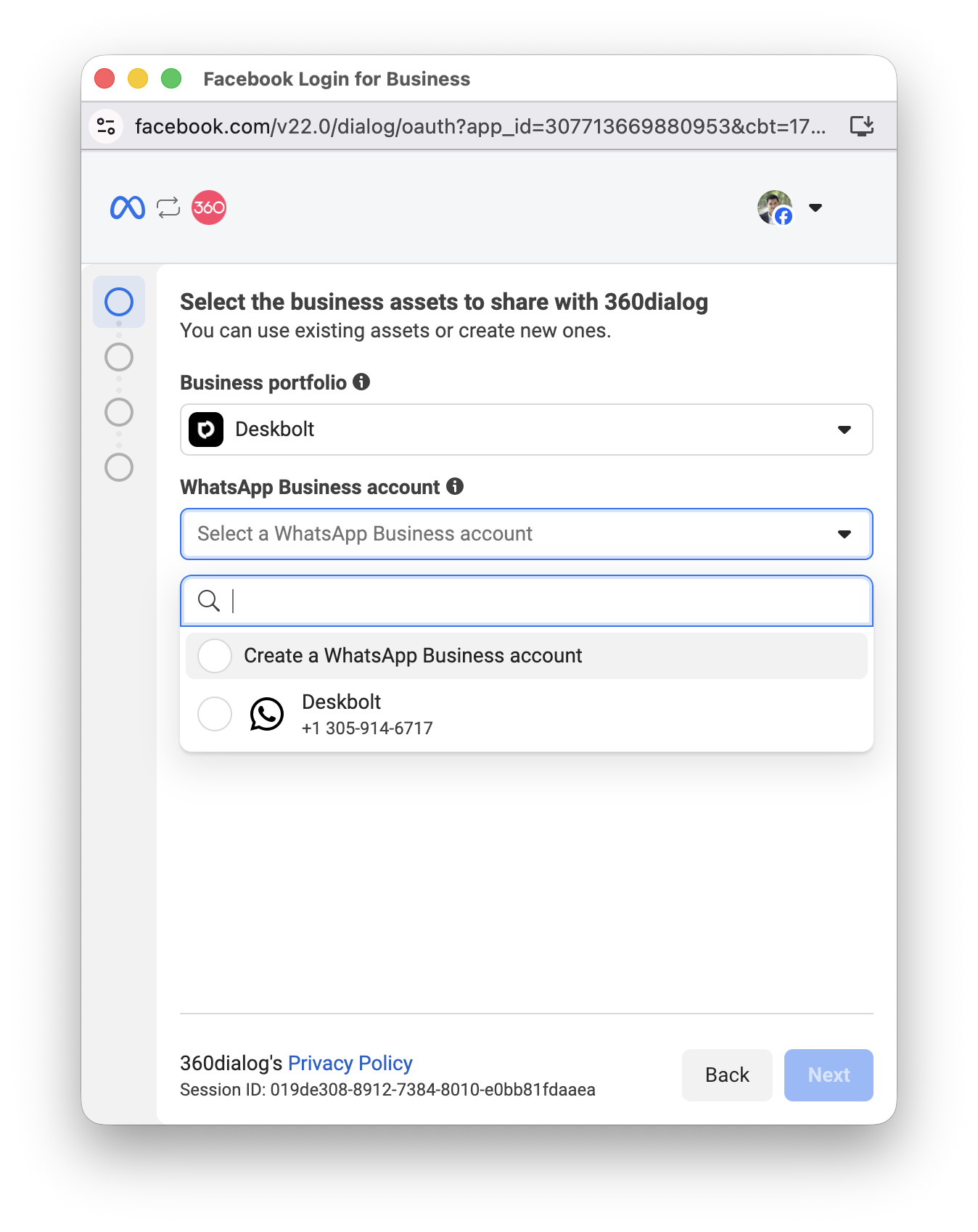
Even if you have an existing WhatsApp Business Account, we recommend creating a new one dedicated to Deskbolt. This isolates your AI chatbot's number and keeps things clean if you ever want to disconnect it later without affecting other workflows.
Click Next.
Step 8 — Enter business info (if creating a new WABA)
If you chose "Create a WhatsApp Business account" at Step 7, you'll need to fill in your business details:
| Field | What to enter |
|---|---|
| Name | The display name your customers will see when you message them on WhatsApp. Must match your real brand name (Meta will reject "Test123" or fake names). |
| Category | Choose the closest category to your business activity (Real estate, Services, etc.) |
| Country | The country where your business is registered |
| Website (optional) | Your business website URL |
| Time zone | Your local time zone |
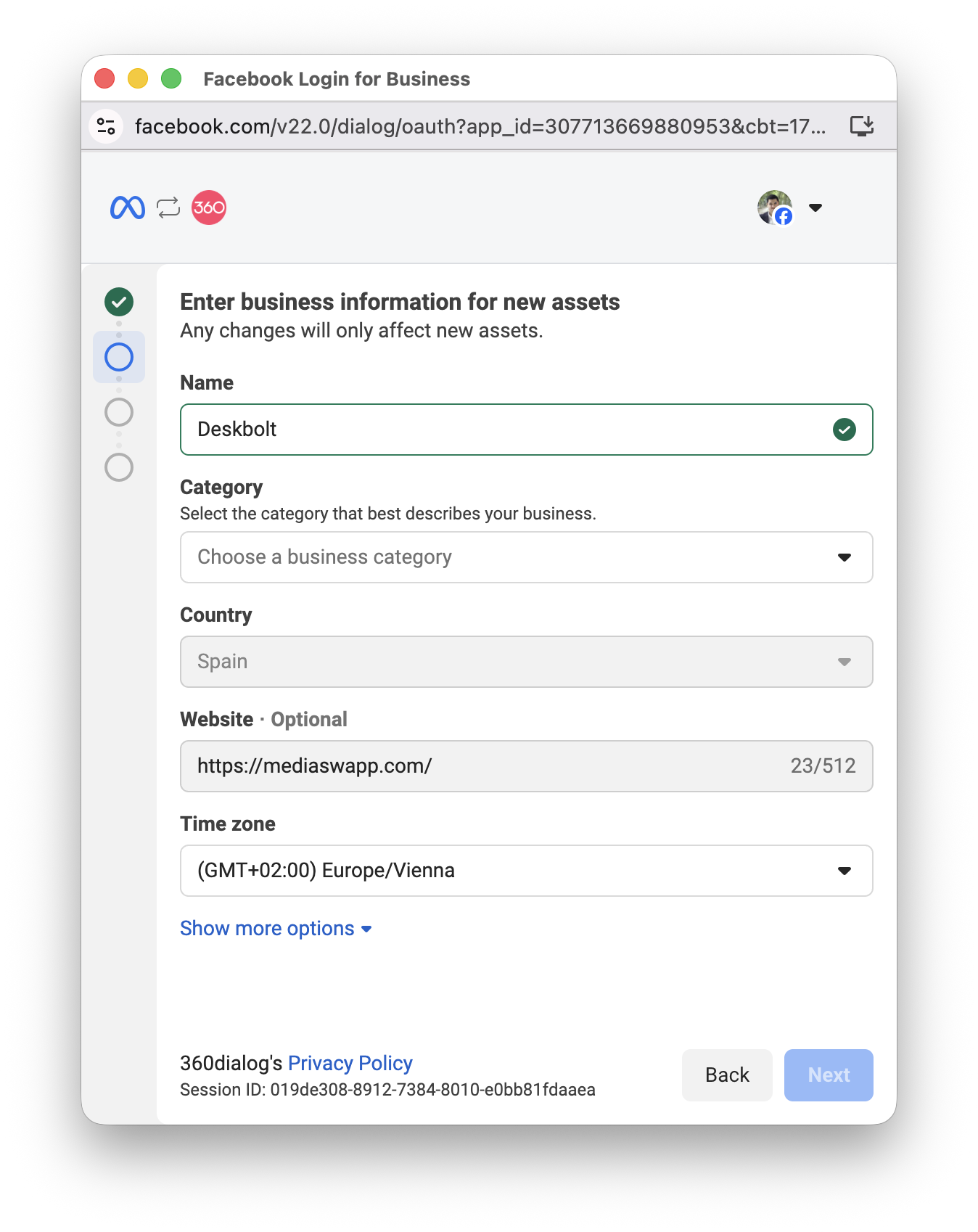
Your display name (the "Name" field) is the customer-facing name on WhatsApp. Meta reviews every name to make sure it matches your real brand. Pick a name that:
- Matches your business name as it appears on your website
- Doesn't contain "Test", "Demo", or generic words
- Doesn't imply a partnership with WhatsApp/Meta (e.g. "WhatsApp Pro" → rejected)
Click Next to continue.
Step 9 — Add your phone number and verify the SMS code
After business info, Meta asks you to add the phone number that will be your WhatsApp Business number:
- Enter the phone number (with country code, e.g.
+33 6 12 34 56 78) - Choose SMS or Voice call to receive the verification code
- The code arrives within seconds — enter the 6-digit code in the form
- Click Validate
Some carriers block automated SMS. If you don't receive the code within 1-2 minutes, retry with the Voice call option — Meta will dictate the code over the phone.
Step 10 — Wait ~24h for Meta to approve the display name
Once the phone is verified, Meta reviews your display name to make sure it matches your brand. This is a manual review:
- ⏱️ Typical delay: ~24 hours
- ⏱️ Worst case: a few business days if Meta needs more info
- 📧 You'll receive a Meta email with the result
While you wait, your number is provisioned but not active yet — the AI chatbot won't reply to messages until the display name is approved.
When approved ✅
- WhatsApp is fully functional and active on your Deskbolt account
- The AI chatbot starts handling WhatsApp messages immediately
- Send a test message to your business number to confirm it works (the chatbot should reply in seconds)
When rejected ❌
- Meta will tell you what's wrong (most often: name doesn't match brand, or implies partnership with WhatsApp)
- Edit the display name in 360dialog dashboard, resubmit
- We can help you choose a name that passes — write us at support@deskbolt.com
What's next?
Once everything is live:
- Configure your AI chatbot's persona, tone, and qualification questions in your Deskbolt dashboard
- Test with real prospects sending messages to your WhatsApp number
- Monitor conversations and lead quality in your Deskbolt dashboard
Need a walkthrough? Email us and we'll book a 30-min call.
Troubleshooting
"The phone number is already in use"
The number is currently active on the regular WhatsApp consumer app. Delete that account first (Settings → Account → Delete my account) BEFORE connecting it to Deskbolt. Wait ~10 minutes after deletion before retrying.
"Verification code not received"
- Check the phone number you entered (with the right country code)
- Try the voice call option instead of SMS — some carriers block automated SMS
- Wait 5 minutes and click Resend code
- If still nothing, contact us — we can investigate
"Meta says my business is not verified"
Go back to Page 1 — Check verification status and confirm both verifications show ✅ Verified. If not, complete Page 2 — Verify your business first, then come back here.
"Two-step verification is enabled" error
Disable two-step verification on the WhatsApp account you're migrating, complete the connection, then re-enable it from the 360dialog dashboard.
Display name rejected by Meta
Meta rejects names that:
- Don't match your real brand (as it appears on your website)
- Contain "Test", "Demo", "API", or generic words
- Imply a partnership with WhatsApp / Meta / Facebook
Edit the display name in 360dialog dashboard with a name that exactly matches your website's branding, then resubmit.
Other issues
Email support@deskbolt.com with a screenshot of the error — we'll fix it together.